
Designing your own artwork can be a great option. It gives you control, keeps things moving, and with tools like Canva and Adobe Creative Cloud, it is easier than ever to pull a design together.
That said, what looks good on screen does not always behave itself in print.
Bleed can be missing. Crop marks can be off. The page size might not match the product. An image can look sharp on your laptop and then print fuzzy. None of it is particularly dramatic until the job reaches press, and then suddenly it is.
The good news is that most print issues can be avoided with a few simple checks before you send your artwork over.
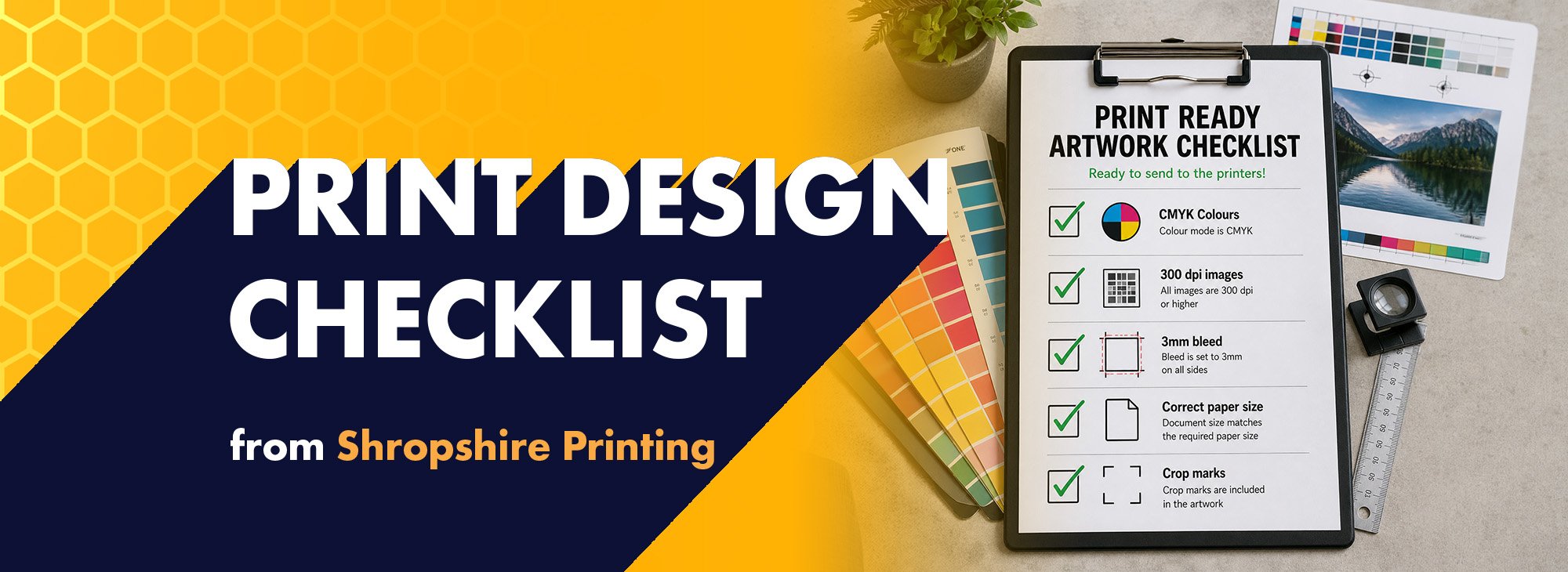
So, if you are creating your own design, here’s a handy print ready checklist to keep by your side.


Make sure your colours are set up in CMYK
This is one of the big ones.
Print works in CMYK, not RGB. RGB is designed for screens, which is why colours can sometimes look brighter on your monitor than they do on the finished printed piece.
If your file is set up in CMYK from the start, you are much more likely to get a printed result that behaves as expected.
It is a small technical detail, but it can make a noticeable difference.


Use high quality images
If your artwork includes photography, logos, graphics or illustrations, quality matters.
For print, images should ideally be 300dpi minimum. Anything lower can end up looking soft, fuzzy or pixelated once printed. That might pass unnoticed on a phone screen, but print tends to be far less forgiving.
As a general rule, if an image has been pulled from the web, screenshot, or copied from somewhere random online, it is worth double-checking before it goes anywhere near a press.


Add bleed on all edges
Bleed sounds far more dramatic than it is.
In simple terms, bleed is the extra bit of artwork that extends past the trim edge. It gives the design room to be cut cleanly, without leaving unwanted white edges around the outside.
For most print jobs, we would usually recommend 3mm bleed on all edges.
If your design has a coloured background, pattern, border or image running to the edge, bleed is essential. Without it, you are leaving the final trim line to chance, and chance is not usually the best artworker in the room.


Check the paper size is correct
It sounds obvious, but it catches people out more often than you might think.
If you are designing an A5 flyer, the document should be set up as A5. If you are creating a square leaflet, a business card or a custom-size piece, the file needs to match that final size properly from the start.
A design that has been created at the wrong dimensions can cause scaling issues, throw off crop marks, and make text placement or image quality harder to control.
In other words, the right size matters before the artwork even gets going.


Make sure crop marks are accurate
Crop marks tell the printer where the finished piece needs to be trimmed.
If they are placed incorrectly, or exported in a way that does not match the actual artwork size and bleed, the final result can quickly become more complicated than it needs to be.
This is one of the areas where AI-generated artwork and certain quick-export tools can fall short. A file may look tidy enough on screen, but behind the scenes the crop marks, bleed settings or output size are not always set up in a print-friendly way.
That is why it is worth checking your export settings carefully before sending artwork over.

A quick word on AI-generated designs
AI can be useful for ideas, inspiration and getting a concept moving. For print-ready artwork, though, it is not always the safest route on its own.
The main issue is not whether the design looks good. It is whether the file has been built properly for print.
Things like bleed, crop marks, exact sizing and image resolution can all cause problems if the file is not set up correctly. So while AI can be helpful creatively, it still needs a proper print-ready eye cast over it before it goes to press.
That is also why platforms like Canva and Adobe Creative Cloud tend to be a better starting point when customers are creating their own artwork. They give you more control over the actual document setup, which matters quite a lot once ink and paper get involved.
Sending us a Canva design? Great, share the design link
If you are creating your artwork in Canva, you do not have to get every last setting perfect on your own.
You can share your Canva design link with our team and we can review it, tweak it where needed, and help make sure it is properly set up for print.
That way, you still get the convenience of designing it yourself, with a bit of expert help before it goes any further.
A good-looking design is one thing. A good-looking design that prints properly is another.
We check artwork before it goes to print
The important thing to know is this: if you send artwork to Shropshire Printing, we do check it before it goes to print.
We look over the key details that can affect the final result, including things like colour setup, image quality, bleed, sizing and crop marks. If something does not look right, we will let you know before it reaches the press.
That extra check can make all the difference. It helps avoid preventable issues, saves time, and gives customers a bit more confidence that the finished job will come out as it should.
Want us to create the artwork for you? We can do that too
Of course, not everyone wants to wrestle with bleed settings and export options, and that is completely fair.
If you would rather leave the artwork to the professionals, our in-house designers can create it for you. Whether you have a clear idea of what you want or just a rough starting point, the team can help turn it into something that is ready to print and ready to do the job properly.
So if you are short on time, short on patience, or simply do not fancy getting into the technical side of artwork setup, we are happy to help.
Need a hand with your artwork?
Whether you are designing your own file in Canva, need a few tweaks before print, or want our in-house team to create the artwork from scratch, we are here to help.
Get in touch with the team to chat through your artwork options.
Email: [email protected]
Phone: 01952 884 556